Script Installation & License Activation
A complete step-by-step guide on how to upload the script to your hosting, verify your purchase, obtain your license key, and activate your script successfully.
Uploading & Extracting Files on Your Hosting
Our script is built with Laravel and uses a lightweight SQLite database. This means you do not need to create or configure any MySQL database — everything is self-contained!
- Log in to your hosting provider's cPanel or File Manager.
- Navigate to your domain's root directory.
- Upload the provided zipped script file.
- Extract the files directly into the directory.
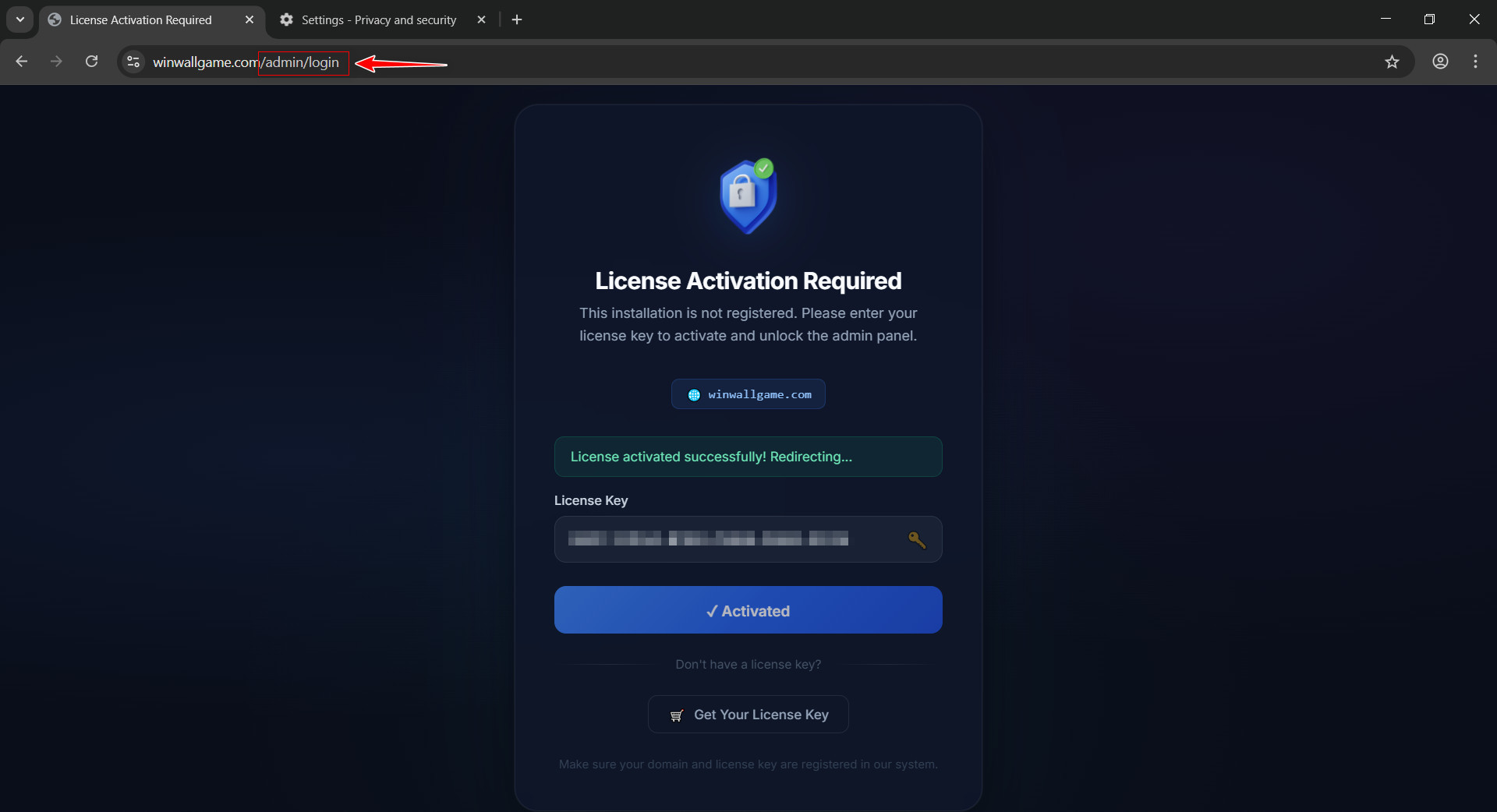
https://your-domain.com/admin/login
Accessing other pages first may result in unexpected errors.
Verify Your Purchase Code
After purchasing the script, you will receive a Purchase Code from the marketplace. The first thing to do is verify this code on our licensing portal to receive your License Key.
- Open your browser and go to https://deve-master.org.
- From the top navigation menu, click on Verify Purchase.
- 1 Enter your Purchase Code — you can find this in the purchase confirmation email from the marketplace.
- 2 Enter your Email Address — use the same email associated with your purchase.
- 3 Click the Verify Purchase Code button.
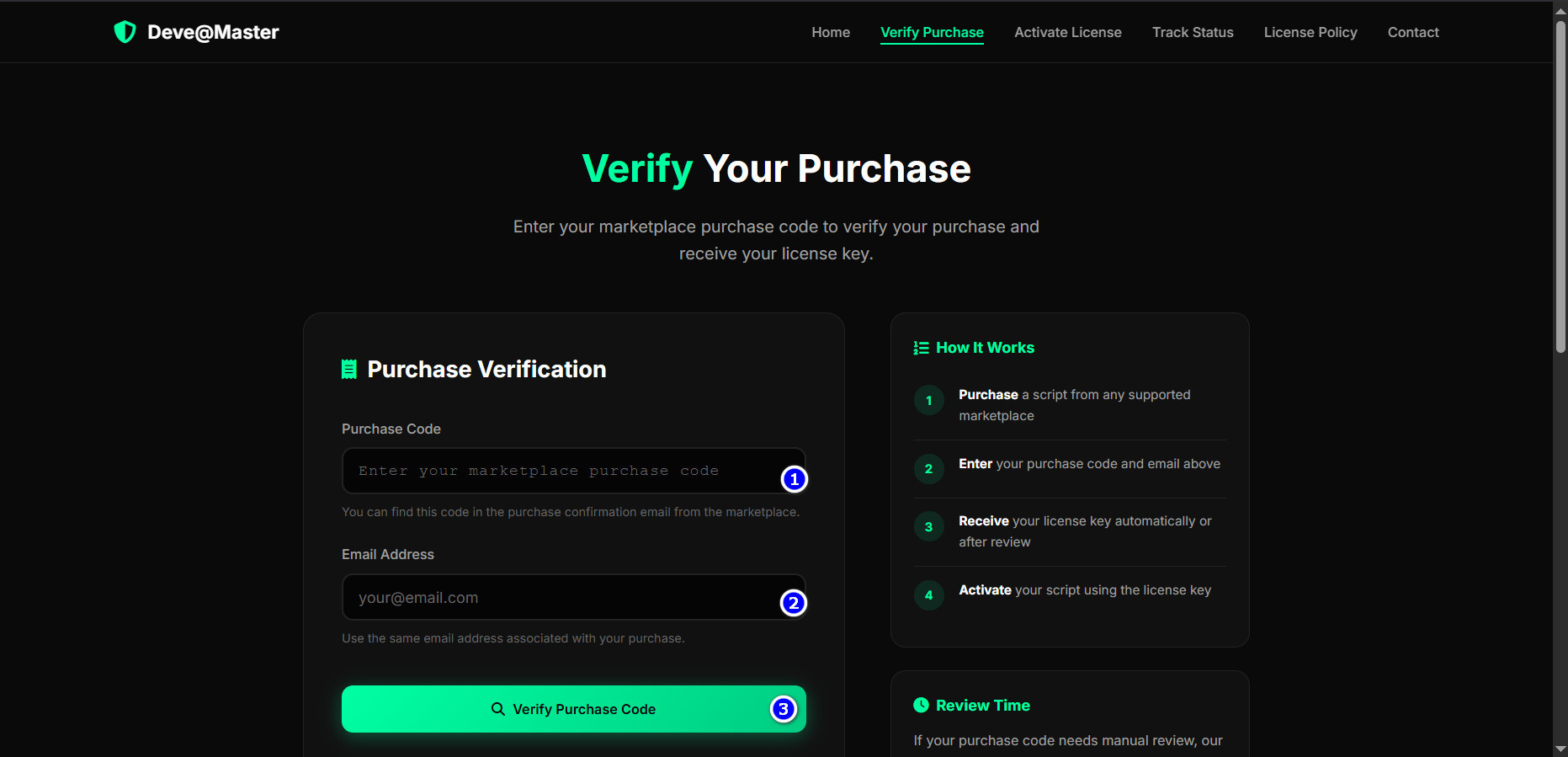
On the right side of the page, you can see the "How It Works" summary explaining the 4-step process: Purchase → Enter code → Receive license key → Activate.
✅ Scenario A - Instant Approval
If your administrator has already registered your purchase code (this often happens shortly after purchase), the system will provide you with a license key immediately after you enter the purchase code and email address. You can then proceed directly to the activation step.
⏳ Scenario B — Pending Review
If you submitted your code before the admin could register it, the system will place your request in a pending review queue. Our team will manually verify your purchase code and approve it within 1–48 hours. Once approved, your License Key will be available.
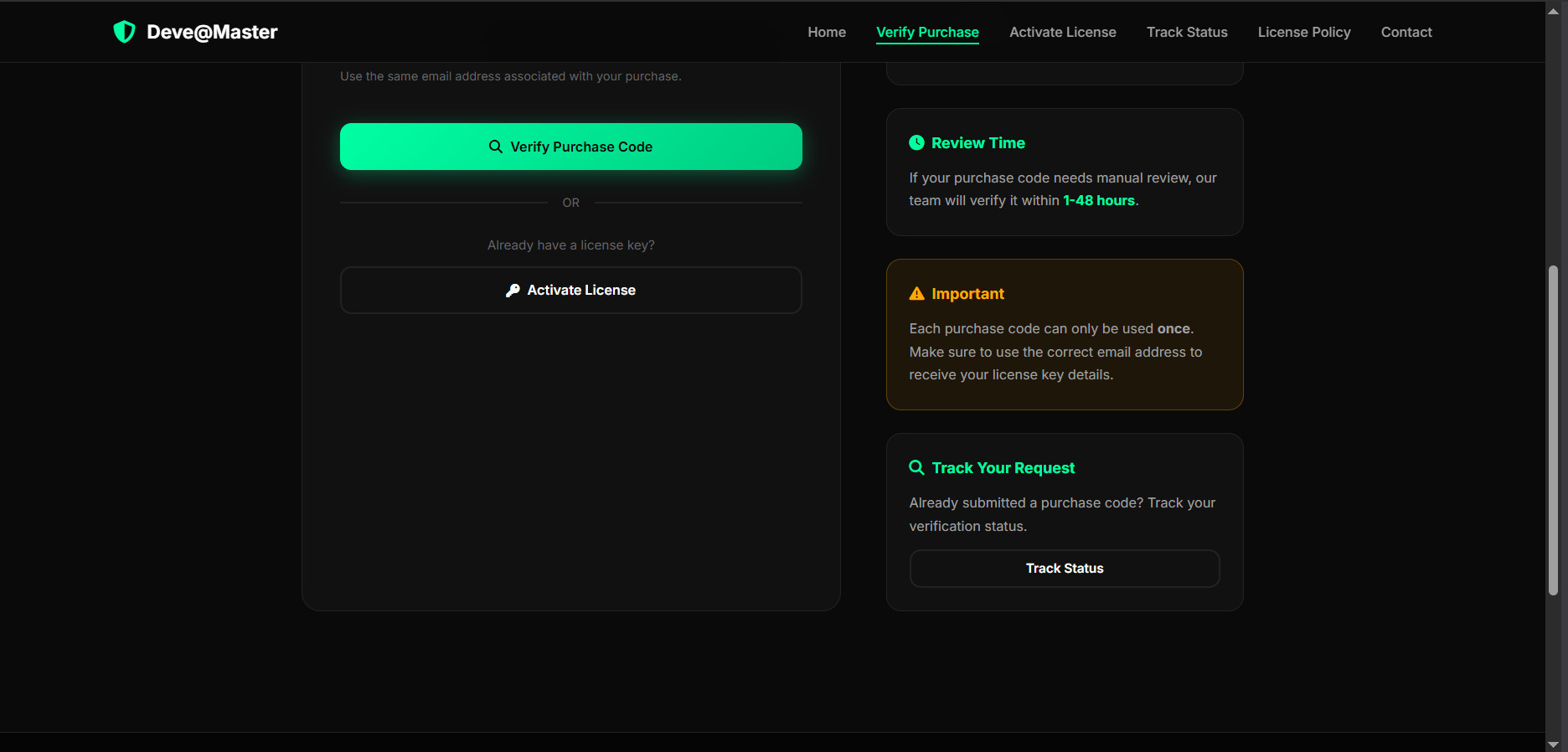
Scrolling down, you will also notice additional important information:
- Review Time: If manual review is needed, the team will verify within 1–48 hours.
- Important: Each purchase code can only be used once. Make sure to use the correct email.
- Track Your Request: You can click Track Status to check on your verification at any time.
- Already have a license key? Click Activate License to proceed directly.
Submit License Activation Request
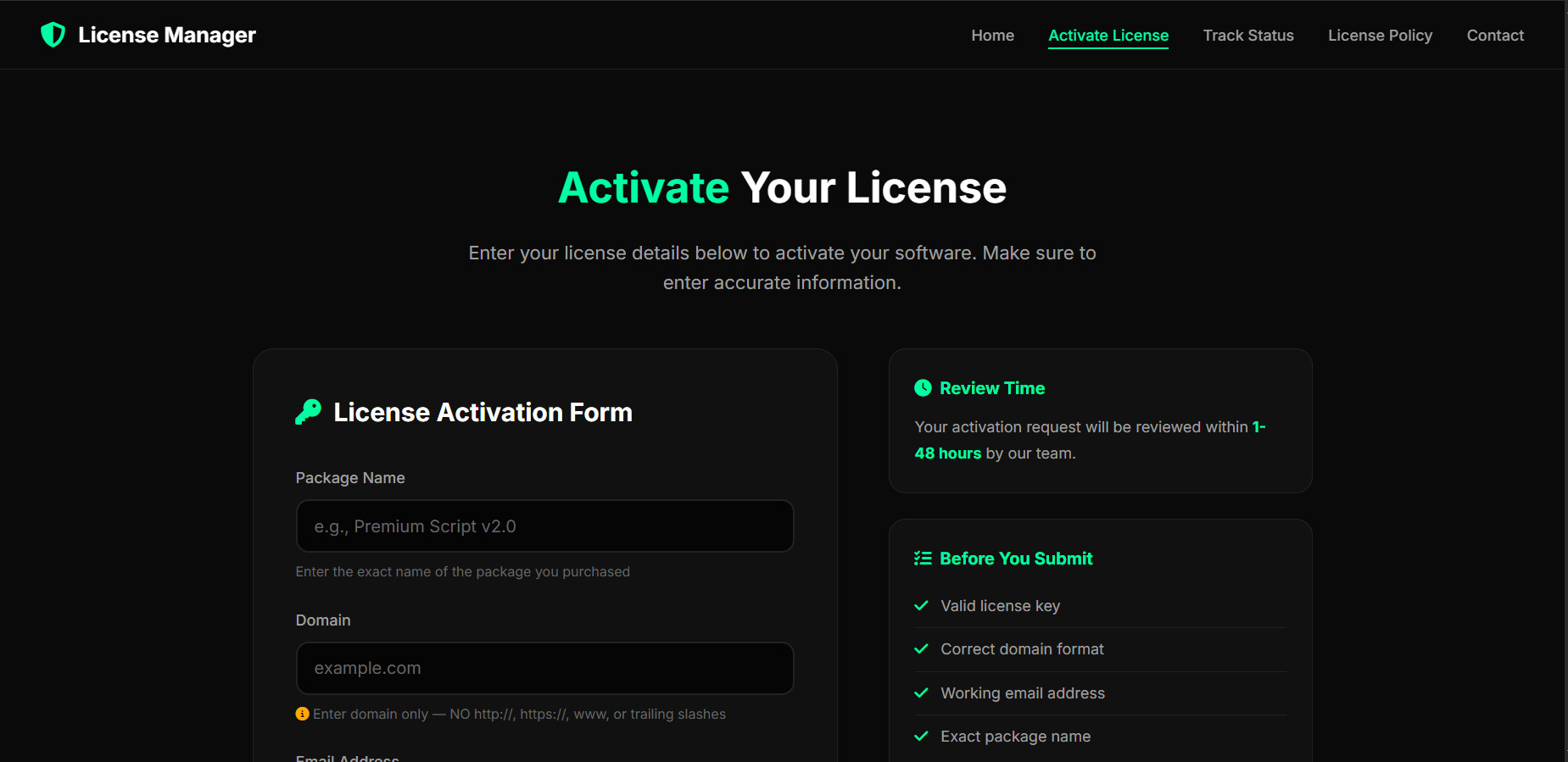
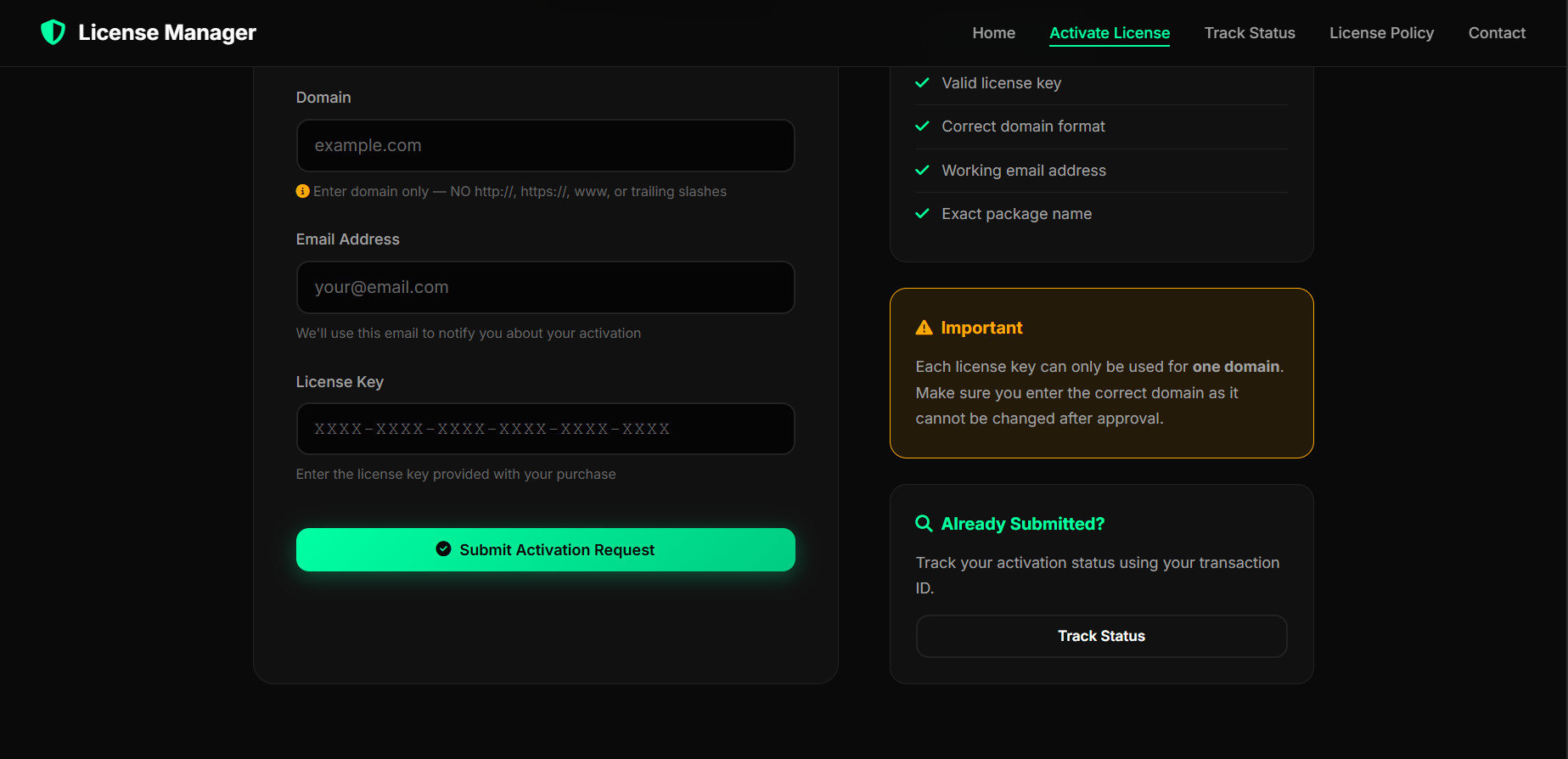
Once you have obtained your License Key (either instantly or after review), you need to register it with your domain. Navigate to the Activate License page from the top menu.
Fill in the License Activation Form carefully:
- Package Name — Enter the exact name of the script/package you purchased (e.g., "Premium Script v2.0").
- Domain — Enter your domain name only, without
http://,https://,www., or trailing slashes (e.g.,example.com).
- ✅ Valid license key
- ✅ Correct domain format (no http/https/www)
- ✅ Working email address
- ✅ Exact package name
Continue filling in the remaining fields:
- Email Address — The email where you'll receive activation notifications.
- License Key — Paste your license key in the format
XXXX-XXXX-XXXX-XXXX-XXXX-XXXX.
When everything is ready, click the green Submit Activation Request button.
Receive Your Transaction ID
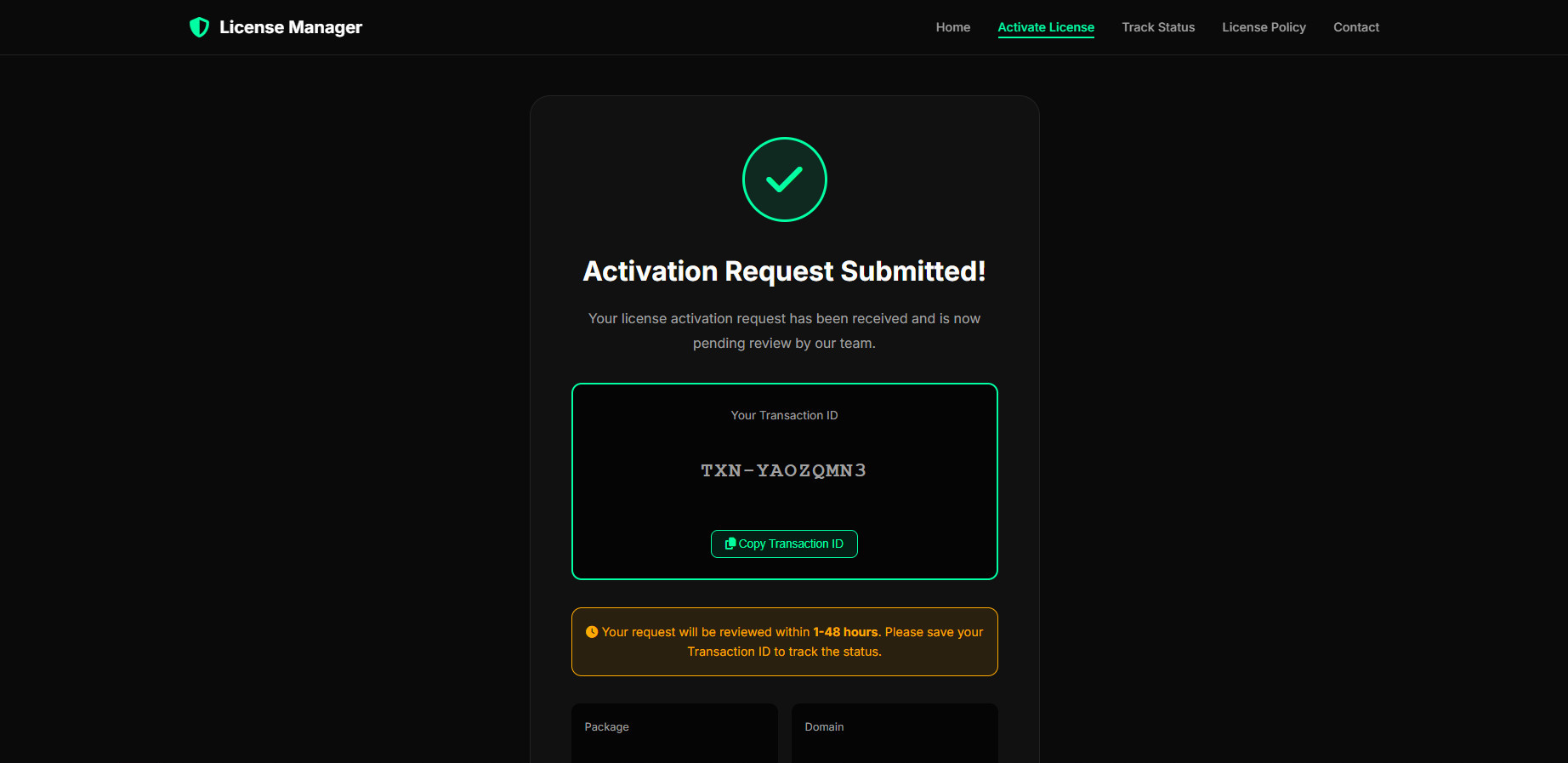
After submitting the activation request, you will see a confirmation screen with your unique Transaction ID.
- The page confirms: "Activation Request Submitted!" — your request has been received and is now pending review.
- A Transaction ID is displayed (e.g.,
TXN-YAOZQMN3). Click Copy Transaction ID to save it. - A notice informs you that the request will be reviewed within 1–48 hours.
Track Your Activation Status
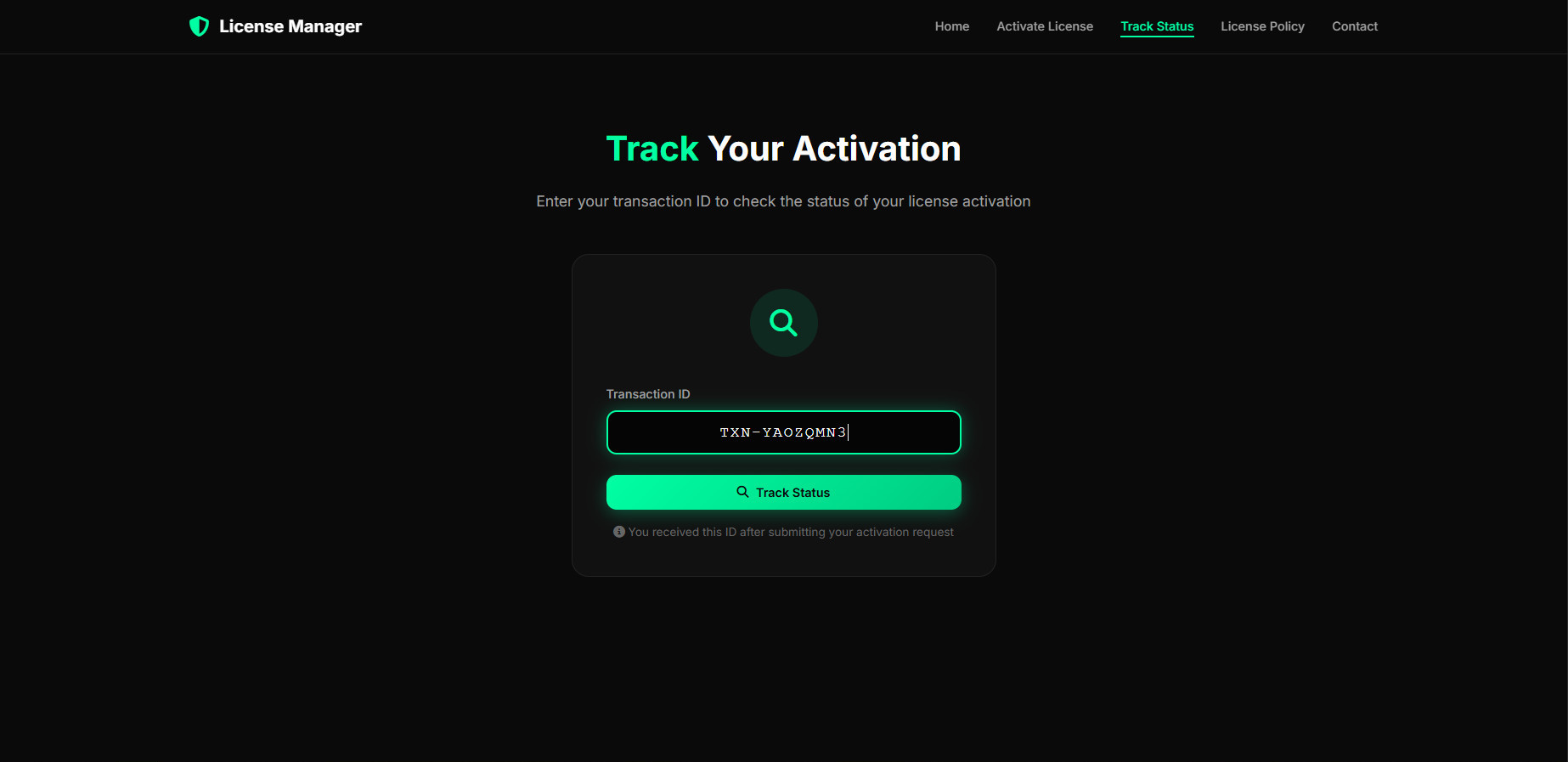
While you wait for the admin team to verify and approve your request, you can check the status at any time using the Track Status page.
- Go to https://deve-master.org and click Track Status from the top menu.
- Enter the Transaction ID you received in the previous step.
- Click the Track Status button to see the current state of your activation request.
Enter the License Key in Your Script
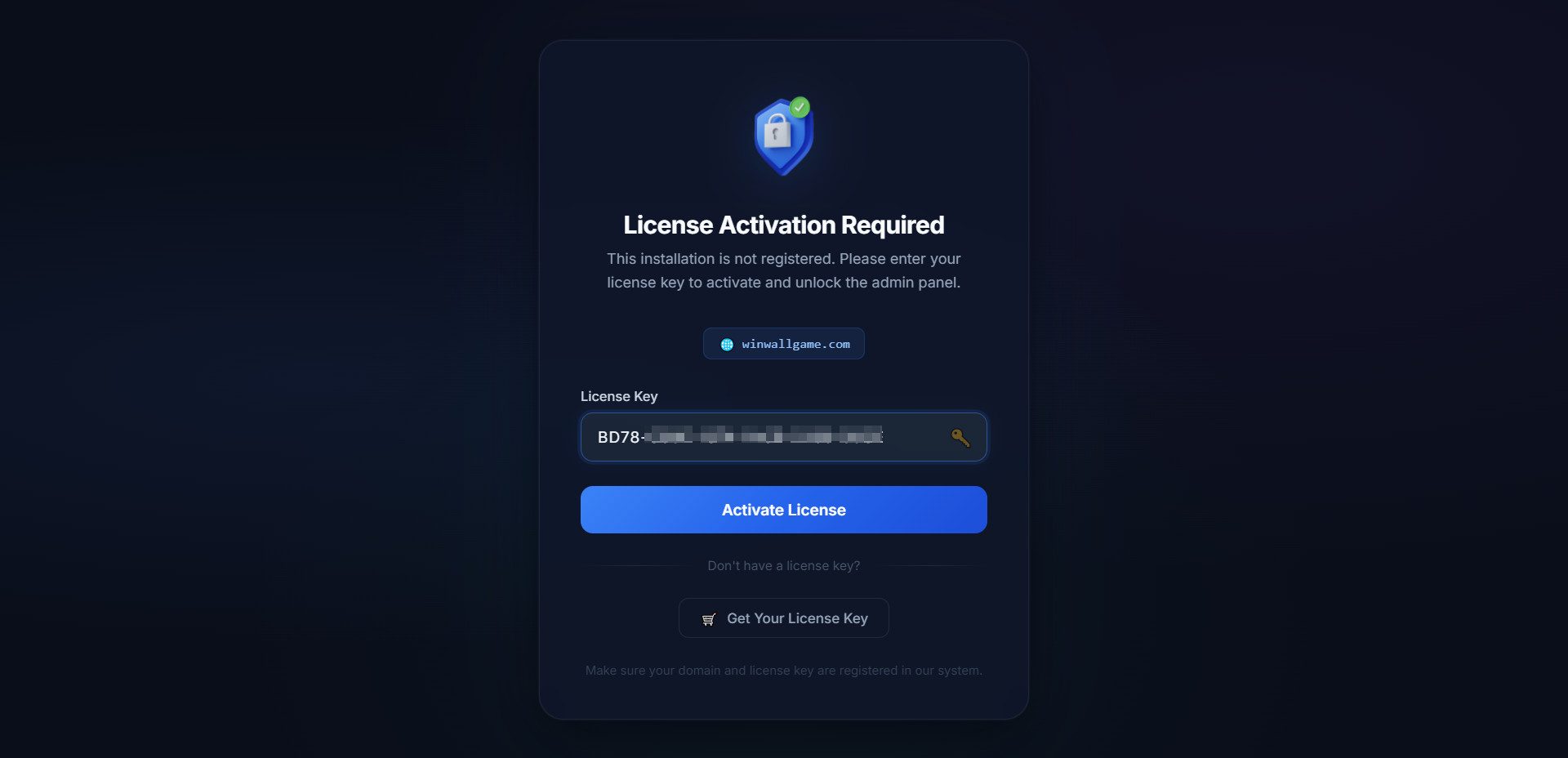
Once your activation request has been approved by the admin team, go back to your website and navigate to:
https://your-domain.com/admin/login
The system will display the "License Activation Required" page. It automatically detects your domain name and shows it on the screen.
- Paste your approved License Key into the input field.
- Click the Activate License button.
If you don't have a license key yet, you can click the "Get Your License Key" link which will redirect you to the Deve-Master portal.
License Activated Successfully!
After entering a valid and approved license key, the system will verify it against the server. If everything matches:
- A green success message will appear: "License activated successfully! Redirecting..."
- The button will change to ✓ Activated.
- The system will automatically redirect you to the Admin Login page where you can sign in and start configuring your platform.